This is definitely one of those "it's better to have it and not need it, than to need it and not have it" kind of things. The last thing we really wanted to deal with was a cell phone, but we decided it made sense to bring one.
We chose to suspend both of our cell phone numbers with AT&T. They have a Reduced Rate Suspend (RRS) option, which basically means you pay $10 a month to not use your cell phone, but you get to keep your number when you come back. We also picked up an 'international' SIM card from Telestial. This is a prepaid SIM card that works just about everywhere. This way we save the cost of keeping one of our AT&T numbers active and paying ~$40/month.
We purchased their "Passport US Lite SIM Card" which when we bought it was free and included a $5 call credit, you just had to pay $9.90 in shipping (we will have to add some credits to the card or the free credit will expire in a month). It will allow us the ability to use our cell phone in every county we travel to, the downside is the call rate is about $1-$2 per minute, but still cheaper than what AT&T would charge.
This should provide us with all the benefits of keeping our home numbers when we return, having a cell phone for an emergency, not having to pay the full monthly charges to AT&T to keep service and have slightly reduced per minute charges when traveling.
A few things to keep in mind: in order to use a phone 'around the world' it's best to be a quad-band GSM (850Mhz, 900MHz, 1800MHz, 1900MHz) phone. This allows you to connect to cell networks in just about every country except Japan and South Korea. AT&T and T-Mobile are the GSM carriers in the US, so if you have either you might not need a new phone. The next thing you need is an unlocked phone, one that isn't tied to a specific carrier. In the US when you buy a phone it's typically tied to the carrier (AT&T or T-mobile) and you can't switch out the SIM card. Usually if you have been with the company for a while they'll unlock it for you. Luckily we had an unlocked, quad-band phone that was purchased a few years ago off E-Bay so we didn't have to worry about either of those.
update:
Purchasing the Telestial international SIM card has basically been a waste of money (albeit only $10 for shipping). So far we've purchased prepaid SIM cards in India as well as Kenya and have found the process rather straightforward and rates are significantly better than using the Telestial SIM. We are paying cents vs dollars per minute when using a prepaid SIM vs. the Telestial international. Plus both prepaid SIMs we have purchased had international roaming and even that was cheaper than Telestial. In India the process to get a prepaid SIM involved getting a copy of your passport and handing over a visa photo (supposedly to stop terrorists from using the prepaid SIMs). In Kenya I handed over 200 KES and walked out with a SIM card and 100 KES credit. Going forward we'll be going the prepaid local SIM route and are tossing the international one.
Showing posts with label technology. Show all posts
2.10.2011
1.31.2011
Drink The Water
I suppose it's fitting to talk about drinking water now that we are in India (due to the stigma attached with its cleanliness). In actuality clean drinking water from the tap is a concern in every country we have visited besides Australia, Singapore and debatably Malaysia and Hong Kong. That leaves 7 country so far and more to come where we've had to deal with the issue. The first solution everyone has is bottled water, but that posed at least 2 issues for us. First the cost, buying bottled water over 7 months quite frankly seemed like a waste of money. Second, and more importantly was the waste produced by the bottles. While the plastic is most certainly an issue in developed countries like the US, it's magnified by the lack of infrastructure to properly dispose of it (hopefully by recycling) in less developed nations. And while we are guilty of purchasing a bottle here and there as well as generating plenty of other trash, we tried to keep it as limited as possible where plastic was concerned.

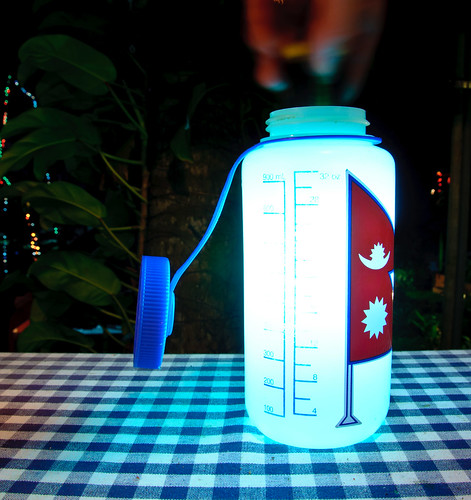
Our answer to the problem was a small gadget (of course who would I be without my gadgets) introduced to me by our friend Brian. It's called a SteriPen, it uses UV light to kill both bacteria and viruses and everyone we've met was rather amazed by its seemingly magical capabilities, which is added to by the blue glow it emits in the water when it's on. The process is simple, fill a bottle with a liter of water (we are each carrying a Nalgene bottle) stir the SteriPen in the water for 90 seconds and drink. The process is fast and tasteless, unlike chlorine and iodine. While it does take batteries (which unfortunately pose another disposal issue) you can sterilize 50+ liters of water on a set.
It is definitely high on our list of recommended travel accessories.

Our answer to the problem was a small gadget (of course who would I be without my gadgets) introduced to me by our friend Brian. It's called a SteriPen, it uses UV light to kill both bacteria and viruses and everyone we've met was rather amazed by its seemingly magical capabilities, which is added to by the blue glow it emits in the water when it's on. The process is simple, fill a bottle with a liter of water (we are each carrying a Nalgene bottle) stir the SteriPen in the water for 90 seconds and drink. The process is fast and tasteless, unlike chlorine and iodine. While it does take batteries (which unfortunately pose another disposal issue) you can sterilize 50+ liters of water on a set.
It is definitely high on our list of recommended travel accessories.
12.27.2010
Photography Workflow: Backups
I'm dedicating a separate section to backups because quite frankly, it's the most important piece of the workflow. It doesn't matter how great a photo is or what you do with it, if in the end you lose it. Since we were going to be traveling for several months being able to effectively backup photos was a big concern. At home I currently backup all of our computers to a central location (an Apple Time Capsule) and important documents are also are backed up online (Mobile Me iDisk). The important thing is that files are backed up and backed up regularly. On the road I knew backing up would be a little more of a challenge, ideally it would have been nice to just upload all the photos online, but that's not really possible with currently over 280 GB of photos and some internet connections so slow that you want to pull your hair out just checking email.
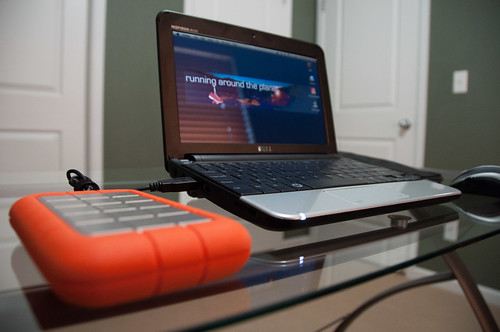
So we went with a 500 GB external hard drive (a LaCie Rugged Hard Disk to be exact) that would allow for a complete backup of everything on the laptop. I also thought the 'rugged' aspect would also help since our bags would be getting thrown around. Anyway, once photos are downloaded to the computer and processed we plug in the external hard drive and take a backup. As an extra measure of protection we travel with the hard drive and the laptop separately, meaning if I have the laptop, Abby has the hard drive. That way if a bag is lost, stolen or destroyed we should hopefully have another copy. However, if all else fails we have a copy of our favorite photos online at Flickr, but we hope we don't have to resort to that.
I urge everyone please, please backup your important data at home. If we can backup data while we're living out of a backpack, surely you can do it. If you have a Mac and later versions of Mac OS X, the easiest way is with an external hard drive and Time Machine and if you are on Windows Vista/7 you have the ability to set up backups to an external hard drive as well, but I can't speak to that process as much.
With that I've wrapped up my current photography workflow (and wouldn't you know my backup just completed). From taking a photo to backing it up and some of the stuff in between. If you have any questions please let me know. And don't worry, I'm sure I'll think up another nerdy/boring topic to write about soon.
For more info on the other aspects of my workflow, check the main post for links: Photography Workflow
So we went with a 500 GB external hard drive (a LaCie Rugged Hard Disk to be exact) that would allow for a complete backup of everything on the laptop. I also thought the 'rugged' aspect would also help since our bags would be getting thrown around. Anyway, once photos are downloaded to the computer and processed we plug in the external hard drive and take a backup. As an extra measure of protection we travel with the hard drive and the laptop separately, meaning if I have the laptop, Abby has the hard drive. That way if a bag is lost, stolen or destroyed we should hopefully have another copy. However, if all else fails we have a copy of our favorite photos online at Flickr, but we hope we don't have to resort to that.
I urge everyone please, please backup your important data at home. If we can backup data while we're living out of a backpack, surely you can do it. If you have a Mac and later versions of Mac OS X, the easiest way is with an external hard drive and Time Machine and if you are on Windows Vista/7 you have the ability to set up backups to an external hard drive as well, but I can't speak to that process as much.
With that I've wrapped up my current photography workflow (and wouldn't you know my backup just completed). From taking a photo to backing it up and some of the stuff in between. If you have any questions please let me know. And don't worry, I'm sure I'll think up another nerdy/boring topic to write about soon.
For more info on the other aspects of my workflow, check the main post for links: Photography Workflow
12.21.2010
Photography Workflow: Publishing
It's taken me a little while to get this post up, mainly because I think it's the weakest part of the workflow (which I'm trying my best to improve) and a little because of continued issues with China's censoring of Blogger (I don't think I'm going to stop complaining about this until I'm out of the country). Anyway, here it is:
Once I have completed the processing of my photos, including keywords and titles/descriptions I post them to Flickr. Currently I am using Lightroom's Publishing feature that allows uploading directly to Flickr within Lightroom. I am also working with Jeffrey's "Export to Flickr" Lightroom Plugin, an enhanced Publishing plugin that provides a little more flexibility, but still not enough for me to be completely satisfied with publishing to the internet.
I have chosen Flickr due to it's strong market share in the online photo world. I think Picasa Web (also blocked in China, see I can't help myself) is an excellent and free alternative (you can get a free Flickr account, but you can only display 200 photos and a few other limitations), but I think the Flickr community is larger and more established.
The Flickr and Lightroom integration allows for the publishing of photos along with their metadata (specifically keywords and location/GPS data). I've really enjoyed being able to view the photos on a map as a way of tracking our travels. A few of the shortcomings with the built in Flickr publisher are the inability to have a photo in more than one photo set (or group) without having to upload the photo multiple times, this is remedied with the Jeffrey's plugin thankfully. However the largest drawback is anytime a photo is modified, even metadata updates like keywords, the photo must be re-uploaded, this has become the bane of my workflow. Once I have tagged a photo and posted it to our blog I cannot make any keyword changes or else it will break the photo on the blog, you may have seen some photos disappear from the blog occasionally, I think they are all correctly displaying now.
Once the photos have been uploaded to Flickr they are hosted there and then displayed on our blog. Flickr doesn't provide an easy way of posting multiple photos to a blog so we use an online app called Includr, which allows us to easily select multiple photos. The nice thing about using Flickr as the host rather than publishing them to Picasa Web (Blogger's default image host) too is that clicking on an image in the blog takes you directly to the image on Flickr, allowing you to view the photo's title and description as well as any other metadata about the photo.
So getting the photos online is handled solely in Lightroom. However the process to get a photo onto the blog involves Lightroom, Flickr, Includr and Blogger as well as some manual copying and pasting, definitely not my style. There you have it, the publishing workflow. Overall it's rather cumbersome and time consuming, but without it you wouldn't have any pictures to look at when you should be working.
For more info on the other aspects of my workflow, check the main post for links: Photography Workflow
Once I have completed the processing of my photos, including keywords and titles/descriptions I post them to Flickr. Currently I am using Lightroom's Publishing feature that allows uploading directly to Flickr within Lightroom. I am also working with Jeffrey's "Export to Flickr" Lightroom Plugin, an enhanced Publishing plugin that provides a little more flexibility, but still not enough for me to be completely satisfied with publishing to the internet.
I have chosen Flickr due to it's strong market share in the online photo world. I think Picasa Web (also blocked in China, see I can't help myself) is an excellent and free alternative (you can get a free Flickr account, but you can only display 200 photos and a few other limitations), but I think the Flickr community is larger and more established.
The Flickr and Lightroom integration allows for the publishing of photos along with their metadata (specifically keywords and location/GPS data). I've really enjoyed being able to view the photos on a map as a way of tracking our travels. A few of the shortcomings with the built in Flickr publisher are the inability to have a photo in more than one photo set (or group) without having to upload the photo multiple times, this is remedied with the Jeffrey's plugin thankfully. However the largest drawback is anytime a photo is modified, even metadata updates like keywords, the photo must be re-uploaded, this has become the bane of my workflow. Once I have tagged a photo and posted it to our blog I cannot make any keyword changes or else it will break the photo on the blog, you may have seen some photos disappear from the blog occasionally, I think they are all correctly displaying now.
Once the photos have been uploaded to Flickr they are hosted there and then displayed on our blog. Flickr doesn't provide an easy way of posting multiple photos to a blog so we use an online app called Includr, which allows us to easily select multiple photos. The nice thing about using Flickr as the host rather than publishing them to Picasa Web (Blogger's default image host) too is that clicking on an image in the blog takes you directly to the image on Flickr, allowing you to view the photo's title and description as well as any other metadata about the photo.
So getting the photos online is handled solely in Lightroom. However the process to get a photo onto the blog involves Lightroom, Flickr, Includr and Blogger as well as some manual copying and pasting, definitely not my style. There you have it, the publishing workflow. Overall it's rather cumbersome and time consuming, but without it you wouldn't have any pictures to look at when you should be working.
For more info on the other aspects of my workflow, check the main post for links: Photography Workflow
12.06.2010
Photography Workflow: Post Processing
I'm going to use this section to describe the steps once a shot has been taken, from organization to the treatment of photos. All of my organization and post processing happens in Adobe Lightroom, with the exception of HDR processing and some occasional editing in Adobe Photoshop.
Once I'm finished shooting I download the photos to Lightroom (currently Lightroom 3). I create folders by date and then assign each shot a label. Everyone has their own way of doing this, but I find the date + label as the best way to assign a meaning to a shot as well as the date providing a way to keep your shots in some sort of order. This organization is strictly for my own amusement as Lightroom's searching/management capabilities allow you to view and organize photos however you would like.
As you can see from the image, some days have 5 shots others have several hundreds. So the next step is to go through the photos and flag the ones I like. Again Lightroom has a function to assign photos as 'Flagged' or 'Rejected'. Once I have gone through the images a first time, I'm typically dealing with significantly fewer images. So now it's time to work with the images.
Lightroom's 'Develop' module allows for the adjustment of just about every aspect of an image, from cropping to color correction. Most images are given minor tweaks include adjusting the exposure, working with the fill light modifying the black clipping of the image, etc. These may sound complicated at first, but it's really about making an image look how it feels to you, there's no wrong answer. I won't go into anything specific since each image is unique, but a great resource on Lightroom is Matt Kloskowski's Lightroom Killer Tips.
Once I've gone through my 'flagged' photos and made any necessary tweaks I'll go back through them again and decide if any aren't really to my liking and remove their flag. This just further reduces the number of images I'm left with. I've found that on any given day I usually end up with choosing 5-10% of the total number of shots I've taken. Since I'm trying to document this trip I'd say that's a pretty high number. If I were just picking shots to display I think I'd be under 5%.
After flagging and treatments are done I go back through and title each image, add a short description and add keywords. I've tried to keep my keywording high level, labels like: 'people', 'boat', 'water', 'landscape' as well as the country and city of the shot are added to my chosen images. I use the keywords to help search and organize my photos. Things like grouping the shots of a country together.
That's about the extent of my post processing. I've tried to keep it a fairly quick and repeatable process since I'm doing it at the end of sometimes very long days of sightseeing. Also since I'm doing it every few days I'm trying to not make it too tedious that I get sick of it and stop doing it.
So hopefully you're still awake and haven't delete this blog from your bookmarks.
For more info on the other aspects of my workflow, check the main post for links: Photography Workflow
Once I'm finished shooting I download the photos to Lightroom (currently Lightroom 3). I create folders by date and then assign each shot a label. Everyone has their own way of doing this, but I find the date + label as the best way to assign a meaning to a shot as well as the date providing a way to keep your shots in some sort of order. This organization is strictly for my own amusement as Lightroom's searching/management capabilities allow you to view and organize photos however you would like.As you can see from the image, some days have 5 shots others have several hundreds. So the next step is to go through the photos and flag the ones I like. Again Lightroom has a function to assign photos as 'Flagged' or 'Rejected'. Once I have gone through the images a first time, I'm typically dealing with significantly fewer images. So now it's time to work with the images.
Lightroom's 'Develop' module allows for the adjustment of just about every aspect of an image, from cropping to color correction. Most images are given minor tweaks include adjusting the exposure, working with the fill light modifying the black clipping of the image, etc. These may sound complicated at first, but it's really about making an image look how it feels to you, there's no wrong answer. I won't go into anything specific since each image is unique, but a great resource on Lightroom is Matt Kloskowski's Lightroom Killer Tips.
Once I've gone through my 'flagged' photos and made any necessary tweaks I'll go back through them again and decide if any aren't really to my liking and remove their flag. This just further reduces the number of images I'm left with. I've found that on any given day I usually end up with choosing 5-10% of the total number of shots I've taken. Since I'm trying to document this trip I'd say that's a pretty high number. If I were just picking shots to display I think I'd be under 5%.
After flagging and treatments are done I go back through and title each image, add a short description and add keywords. I've tried to keep my keywording high level, labels like: 'people', 'boat', 'water', 'landscape' as well as the country and city of the shot are added to my chosen images. I use the keywords to help search and organize my photos. Things like grouping the shots of a country together.
That's about the extent of my post processing. I've tried to keep it a fairly quick and repeatable process since I'm doing it at the end of sometimes very long days of sightseeing. Also since I'm doing it every few days I'm trying to not make it too tedious that I get sick of it and stop doing it.
So hopefully you're still awake and haven't delete this blog from your bookmarks.
For more info on the other aspects of my workflow, check the main post for links: Photography Workflow
12.02.2010
Photography Workflow: Getting the Shot
I don't have much to say here other than to share what I have learned from others including a quote from Chase Jarvis, a photographer I'm rather fond of, who said "The dirtiest secret in photography is you have to take a lot of pictures." Which I could not agree with more, of the 450 photos I've posted to my Flickr account over the last 80 days, there are another 4,767 that I didn't think were that great.
Here are some resources I've found particularly helpful:
For more info on the other aspects of my workflow, check the main post for links: Photography Workflow
Here are some resources I've found particularly helpful:
- The Digital Photography Book, by Scott Kelby - this a great book that got me started, it covers lots of aspects of photography and there a follow up volumes that are good as well.
- D-Town TV Podcast - this is a podcast with lots of tips for digital photography
- Working With Artists - This is a great photography school and gallery in Lakewood, CO that I've taken several classes from.
For more info on the other aspects of my workflow, check the main post for links: Photography Workflow
12.01.2010
Photography Workflow: Gear
First I'll start off with the gear I'm using, not that getting a great shot is all about the equipment, but we're lugging it around the world so it's worth a mention. A complete gear list is on the packing page.
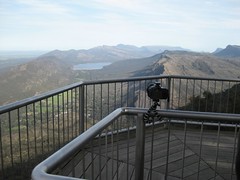
camera: Nikon D90 - a prosumer DSLR. DSLRs have their advantages and disadvantages. This camera with lens is sometimes a bear to carry around, it can't slip into your pocket and sometimes it's a little big to get those 'discrete' shots. Luckily Abby has a small Canon point and shoot that can fill those gaps. On the plus side it has about all the functions you could ask for in a camera in this price range and I'm consistently able to get the shots I want.
lens: Nikon 18-200 f:3.5-5.6 - this is basically the swiss army knife of lenses, it allows for good wide angle shots, think mountain landscapes, and also has a good telephoto for getting in close. I chose this lens so I wouldn't have to deal with carrying around multiple lenses or having to change lenses in difficult situations, like hiking or on a cramped bus. Basically it's not the best lens, but it does a lot of things well.
accessories:
The above things help get the shot, but after that comes the post processing of the images. I shoot in RAW, which basically means the camera is taking a digital negative and once it's on the computer I have a lot more control of getting the photo to look how I want, similar to the film days when you would head into the darkroom. So along with the camera gear, we have a laptop for processing, uploading and backing up photos.

computer: Dell Inspiron Mini 10v - your standard 10" netbook, but it's running Mac OS X, that's another blog post in itself.
accessories:
One of the challenges of planning what to bring is how much hard drive and memory card space we'd need to house and then backup all of the photos. As a starting point I looked back at several of the extended trips we'd taken (Peru, France & New Zealand) to calculate that I had taken on average 91 photos/day, which based on this trip at 7 months would be a total of almost 20,000 photos and over 200 GB of space.
So with that as a starting point and factoring in Abby's photos as well as documents, some movies and whatever else we had on the laptop I decided to upgrade the hard drive in the laptop to 500 GB and purchase a 500 GB backup hard drive. I also purchased a several 8 GB SD memory cards so that if we were without the laptop for a few weeks I could keep shooting.
Now all we have to do is lug this stuff around and make sure it doesn't get broken, which we've been successful at so far.
For more info on the other aspects of my workflow, check the main post for links: Photography Workflow
camera: Nikon D90 - a prosumer DSLR. DSLRs have their advantages and disadvantages. This camera with lens is sometimes a bear to carry around, it can't slip into your pocket and sometimes it's a little big to get those 'discrete' shots. Luckily Abby has a small Canon point and shoot that can fill those gaps. On the plus side it has about all the functions you could ask for in a camera in this price range and I'm consistently able to get the shots I want.
lens: Nikon 18-200 f:3.5-5.6 - this is basically the swiss army knife of lenses, it allows for good wide angle shots, think mountain landscapes, and also has a good telephoto for getting in close. I chose this lens so I wouldn't have to deal with carrying around multiple lenses or having to change lenses in difficult situations, like hiking or on a cramped bus. Basically it's not the best lens, but it does a lot of things well.
accessories:
- Joby Gorillapod SLR-Zoom Tripod, it's been great for night shots or photos of Abby and me when no one is around
- Dawn Tech di-GPS Mini 3L, basically a little gadget that attaches to the camera so photos are tagged with the location of the shot (GPS coordinates). It has been a lot of fun being able to see the exact spot a shot was taken, Here is link of all my photos on a map.
- SD cards, about 30 GB worth, basically I can shoot over 1500 photos before needing to download to a computer.
- Tiffen 72mm Polarizing filter, basically polarized sunglasses for your camera, helpful in getting getting dark blue skies and shots of water
- spare camera battery, you don't know when you're not going to have a place to charge your battery
The above things help get the shot, but after that comes the post processing of the images. I shoot in RAW, which basically means the camera is taking a digital negative and once it's on the computer I have a lot more control of getting the photo to look how I want, similar to the film days when you would head into the darkroom. So along with the camera gear, we have a laptop for processing, uploading and backing up photos.

computer: Dell Inspiron Mini 10v - your standard 10" netbook, but it's running Mac OS X, that's another blog post in itself.
accessories:
- LaCie 500GB Rugged HDD, this hard drive was a big must have for me, since we were going to be gone for an extended period of time I needed a way of knowing that all of our photos would be safe so this hard drive is used for backups, which I'll cover in more detail later. This hard drive also touts being a little more durable than others and is supposed to be able to withstand a drop, so just in case...
- wireless mouse, cables, etc.
One of the challenges of planning what to bring is how much hard drive and memory card space we'd need to house and then backup all of the photos. As a starting point I looked back at several of the extended trips we'd taken (Peru, France & New Zealand) to calculate that I had taken on average 91 photos/day, which based on this trip at 7 months would be a total of almost 20,000 photos and over 200 GB of space.
So with that as a starting point and factoring in Abby's photos as well as documents, some movies and whatever else we had on the laptop I decided to upgrade the hard drive in the laptop to 500 GB and purchase a 500 GB backup hard drive. I also purchased a several 8 GB SD memory cards so that if we were without the laptop for a few weeks I could keep shooting.
Now all we have to do is lug this stuff around and make sure it doesn't get broken, which we've been successful at so far.
For more info on the other aspects of my workflow, check the main post for links: Photography Workflow
11.30.2010
Photography Workflow
One question that quite a few people ask is "What do you do to your photos?..." It's not always a straight forward answer, but I figured it deserved a blog post to go over my photography workflow. So I'll try to explain it and hopefully not bore everyone, but keep in mind you are reading the words of a big nerd.
Actually, after starting to write this up I realized it's probably too much info (and would get way too boring) for one post so I'll break it out into several posts that will link from here.
Also as a blank statement for all these posts, I'm not a pro, I'm just a guy with a camera who likes taking photos, nothing more.
Topics:
Gear
Getting The Shot
Post Processing
Publishing
Backups
Actually, after starting to write this up I realized it's probably too much info (and would get way too boring) for one post so I'll break it out into several posts that will link from here.
Also as a blank statement for all these posts, I'm not a pro, I'm just a guy with a camera who likes taking photos, nothing more.
Topics:
Gear
Getting The Shot
Post Processing
Publishing
Backups
8.12.2010
Googleized
As we are planning we realize how much we are investing into Google for this trip. For better (a great set of apps and great features) or worse (they have a lot of our info) Google has become a huge resource for this trip. Here's the breakdown:
- Gmail - has become both of our primary email application, it's labeling and search has been great for finding all those confirmation emails and receipts
- Blogger - the site you're viewing now
- Google Docs - hosting spreadsheets of expenses and documents we might need on the road, shared between both of us
- Google Calendar - our trip schedule, shared between both of us
- Google Voice - we'll have to see how this works, but we'll be using Google Voice as our main contact number as well forwarding our phones to this number. This will allow a single place to check voicemails and the best part is Google Voice transcribes voicemails into text allowing us to either listen to them online or read the message without having to call stateside or miss important calls. It also has great international calling rates for making calls overseas.
- Google - need some info, have a question, Google it!
So with all that I'd say Google knows more about us than our parents.
Subscribe to:
Posts (Atom)